PayPal Checkout Flow
The PayPal Checkout Flow extension uses Bold Checkout to add PayPal checkout options for your Adobe Commerce store. Using the built-in Adobe Commerce checkout and PayPal Checkout Flow together allows merchants to choose which payment processor an order should go to. Customers also have the option of checking out with their payment information or their PayPal account.
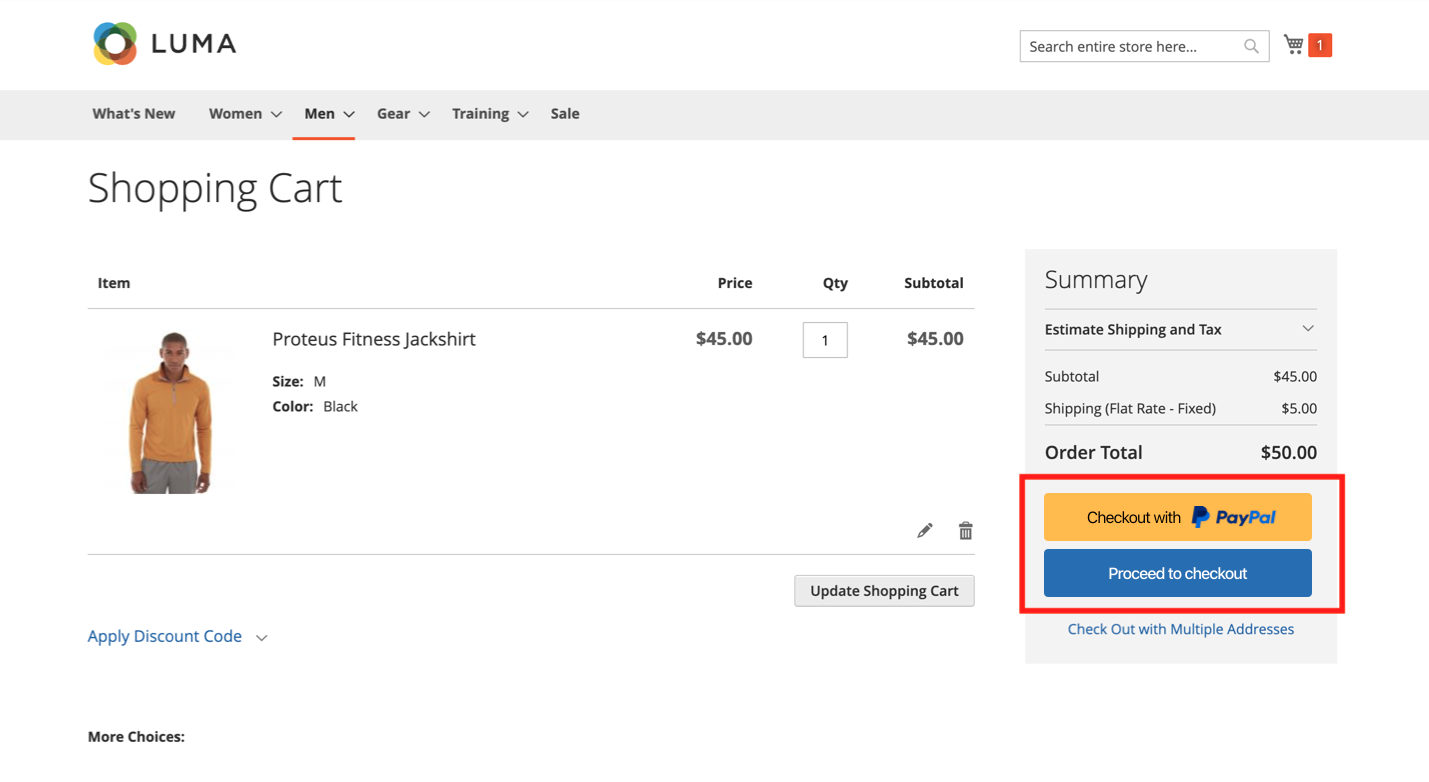
Supported features
Supported features include:
- PayPal payment options including:
- PayPal Smart Payment Buttons (PayPal, Pay Later, credit and debit)
- Apple Pay
- “Buy now with PayPal” button for product pages.
- Customization
- Discount codes
- Shipping rules
- Tax rules
Constraints
-
caution
Bold currently supports one Bold-hosted Checkout flow in use at a time. Activating the PayPal Checkout Flow disables any currently enabled Bold-hosted Checkout flows.
- The PayPal Checkout Flow can only be used with PayPal Commerce Platform (PayPal Complete Payments) as the payment gateway.
- The PayPal Checkout Flow extension does not support the following features:
- Advanced credit/debit card configuration
- Buy Online, Pickup In Store (BOPIS) functionality
- Third-party plugins
- Loyalty programs and store credits
- Gift card payments
- Shipping to multiple addresses
Installation
- Install and configure Bold Checkout on your Adobe Commerce store using the installation guide that corresponds to your architectural needs. For more information, refer to the Overview.
- Configure PayPal Commerce Platform as your store's payment gateway. Instructions can be found in the Help Center.
Check Bold Checkout Extension version
The Adobe Commerce Bold Checkout extension version must be >= 1.1.23.
There are two ways to check the extension version: using a Composer command, or through the Adobe Commerce admin page post-installation.
- Composer
- Adobe Commerce Admin
Run the following command to return your extension version:
composer show bold-commerce/module-checkout | grep versions
Follow the steps below to check the extension version in your Adobe Commerce Admin page:
- In the Adobe Commerce admin, navigate to Stores > Configuration.
- In the Scope drop-down menu at the top of the page, select Main Website. This drop-down is titled Store View in Adobe Commerce versions earlier than 2.4.
- In the left-hand menu of the Configuration page, navigate to Sales > Checkout.
- Expand the Bold Checkout Module Versions section and find the Bold_Checkout Version field.
Update versions < 1.1.23
If your version is earlier than 1.1.23, run the following Composer command:
composer require bold-commerce/module-checkout:">=1.1.23"
Install the extension on your store
Run the following commands to install and enable the extension:
-
Add the extension's Composer package:
composer require bold-commerce/module-checkout-flow-paypal -
Enable the extension:
php bin/magento module:enable Bold_CheckoutFlowPaypal -
Compile and deploy the extension:
php bin/magento setup:upgrade
php bin/magento setup:di:compile
php bin/magento setup:static-content:deploy -f -
Flush the Magento cache before continuing:
php bin/magento cache:flush
If your PayPal business account admin requires a phone number from customers, you must also require a phone number in the Bold Checkout and Adobe Commerce admins. Check if your PayPal business account requires phone numbers with the following instructions:
- In your PayPal business account admin, navigate to Account Settings. Click Website Payments.
- Next to Website Preferences, click Update.
- View the Contact telephone number setting.
If the Contact telephone number setting is On (required field), set your Bold Checkout and Adobe store admins to require customer phone numbers at checkout.
Bold Checkout:
- In the Bold Checkout admin, navigate to Settings > General Settings.
- In the Checkout Process section, toggle the Phone Number setting on.
- Click Save.
Adobe Commerce:
- In the Adobe Commerce admin, navigate to Stores > Configuration.
- In the Scope drop-down menu at the top of the page, select Main Website.
note
This drop-down is titled Store View in Adobe Commerce versions earlier than 2.4.
- In the left-hand menu of the Configuration page, navigate to Customers > Customer Configuration.
- Expand the Name and Address Options section.
- Set the Show Telephone field to Required.
- Click Save Config.
Usage and configuration
The next sections explain how to enable, configure, and disable the PayPal Checkout Flow in the Adobe Commerce admin.
Enable the PayPal Checkout Flow
After installing the extension, enable the PayPal Checkout Flow from your Adobe Commerce admin.
- In the Adobe Commerce admin, navigate to Stores > Configuration.
- In the Scope drop-down menu at the top of the page, select Main Website.
note
This drop-down is titled Store View in Adobe Commerce versions earlier than 2.4.
- In the left-hand menu of the Configuration page, navigate to Sales > Checkout.
- Expand the Bold Checkout PayPal Integration section.
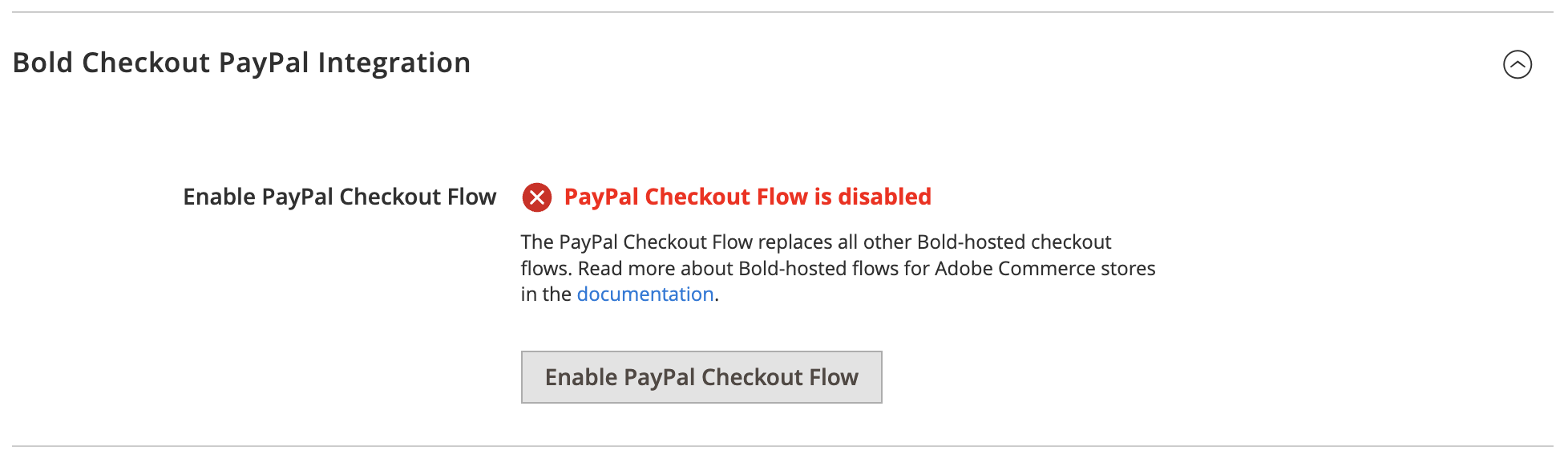
- If the Is PayPal Checkout Flow Enabled? field is set to No, click the Enable button.
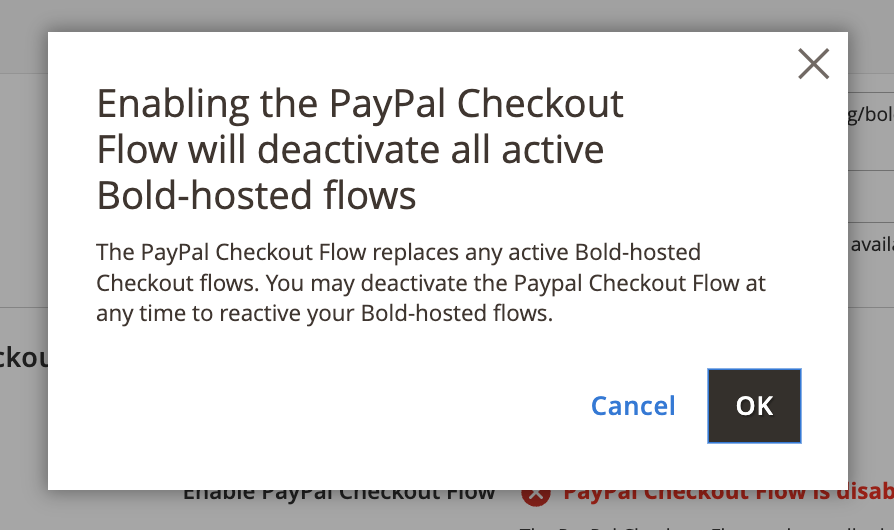
- Click OK in the confirmation pop-up.
- Once the page reloads, Is PayPal Checkout Flow Enabled? is set to PayPal Checkout Flow is enabled. The flow is successfully enabled for your store.
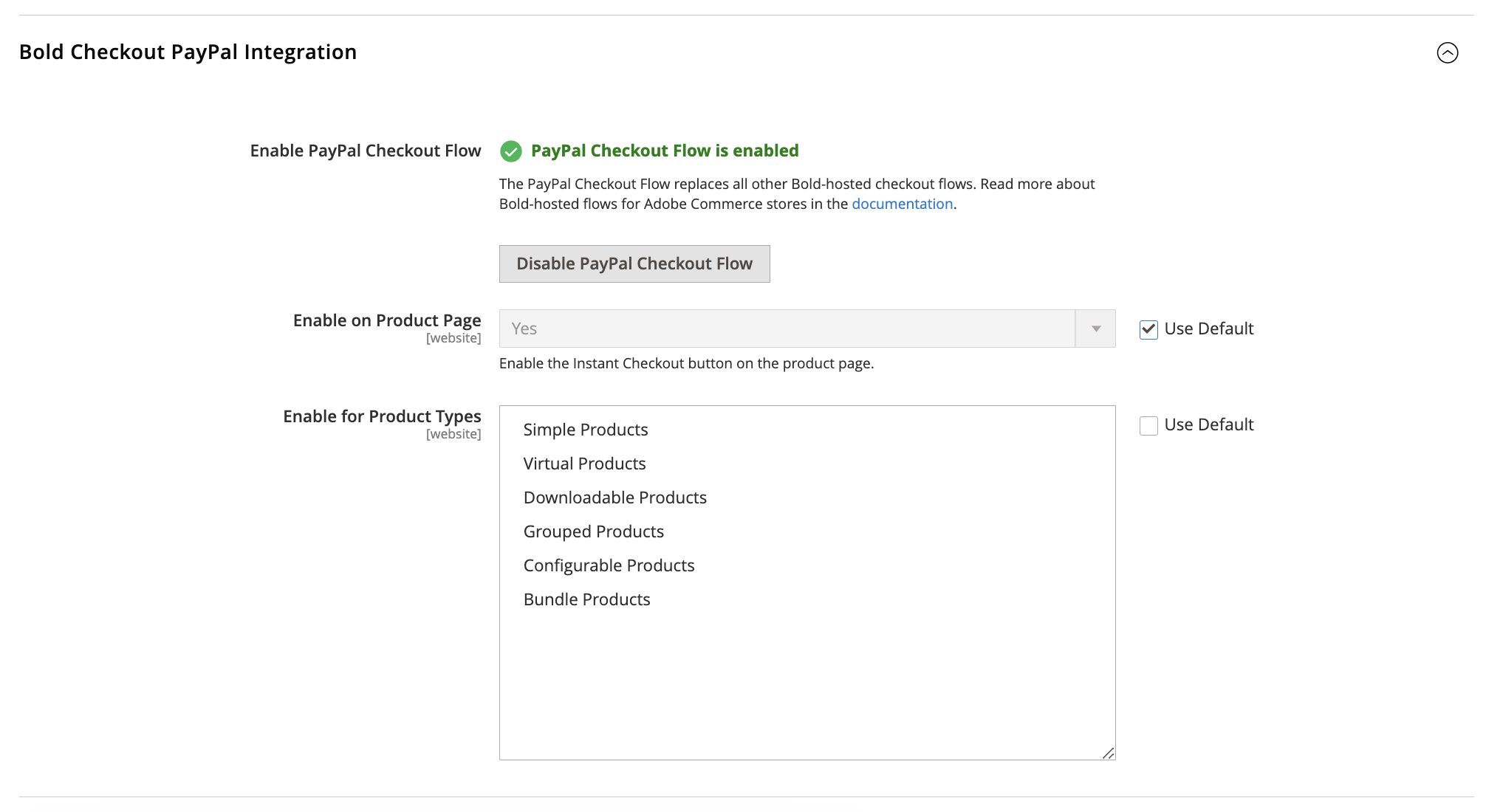
The PayPal Checkout Flow uses the "Dual" setting in the Bold Checkout Type field. Enabling the PayPal Checkout Flow in the Adobe Commerce admin automatically changes the store's Bold Checkout Type to "Dual".
(Optional) Configure "Buy now with PayPal" on product pages
The extension allows merchants to add a "buy now" button to products based on product type. (Read more about product types on the Adobe Commerce Experience League.)
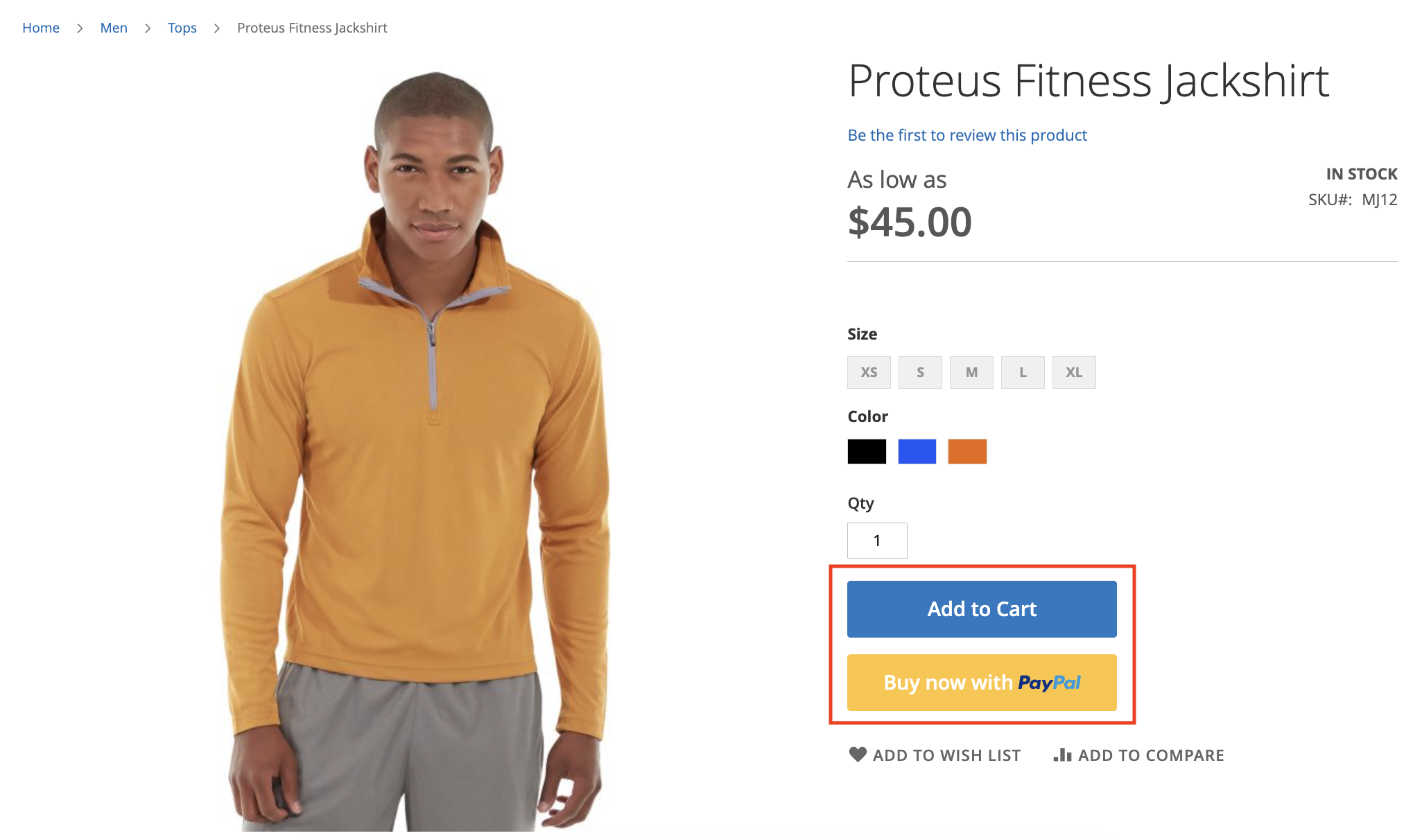
By default, this functionality is enabled but not configured. To configure Buy now with PayPal for products, you must select which products show the button.
- In the Bold Checkout PayPal Integration section, ensure Enable for Product Page is set to Yes.
- Ensure Use Default is not selected for Enable for Product Types.
- Select the desired type of product to show the Buy now with PayPal button.
- Click Save Config.
To disabled Buy now with PayPal for products, you must set the Enable for Product Page field to No.
- In the Bold Checkout PayPal Integration section, ensure Use Default is not selected for Enable for Product Page.
- In the Enable for Product Page field, select No in the drop down menu.
- Click Save Config.
Verify PayPal Checkout Flow
Now that the PayPal Checkout Flow is enabled, verify the extension works by checking out in your store.
- Navigate to your Adobe Commerce store.
- Add a product to your cart.
- Click the cart icon to expand checkout options. Two options display: Proceed with Checkout and Checkout with PayPal.
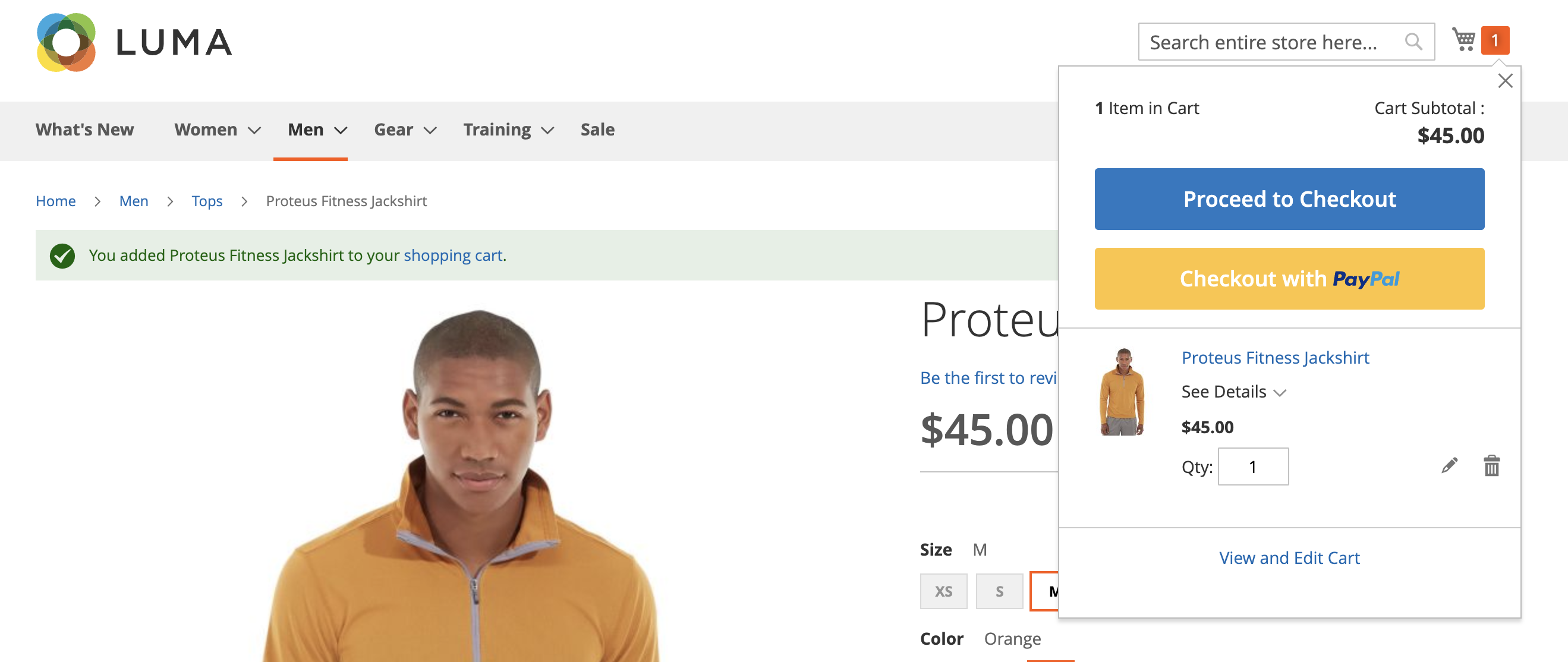
- Click the Checkout with PayPal button.
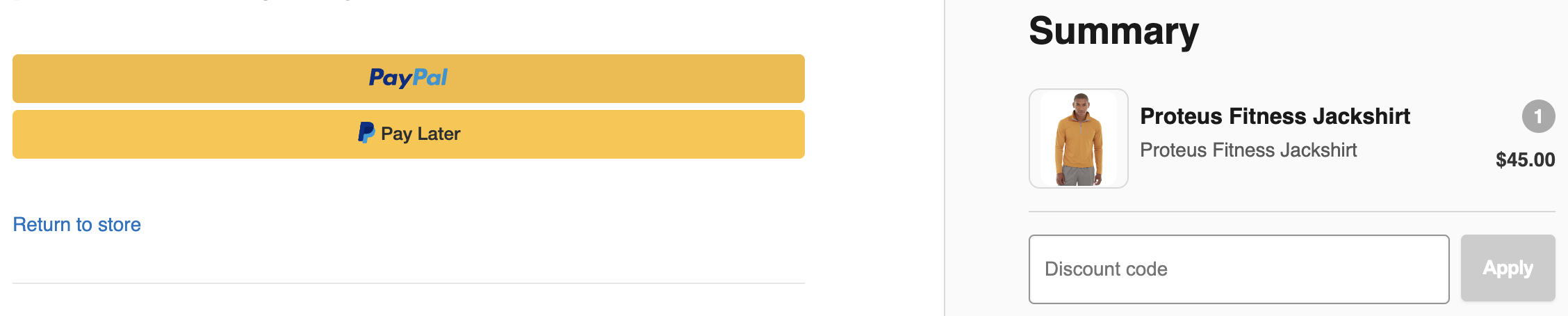
- Checkout with any of the available options.
Disable the PayPal Checkout Flow
The Disable button allows you to deactivate the PayPal Checkout Flow.
- In the Adobe Commerce admin, navigate to Stores > Configuration.
- In the Scope drop-down menu at the top of the page, select Main Website.
note
This drop-down is titled Store View in Adobe Commerce versions earlier than 2.4.
- In the left-hand menu of the Configuration page, navigate to Sales > Checkout.
- Expand the Bold Checkout PayPal Integration section.
- If the Is PayPal Checkout Flow Enabled? field is set to Yes, click the Disable button.
- Once the page reloads, Is PayPal Checkout Flow Enabled? is set to No.
The Bold Checkout Type is still set to "Dual" after disabling the PayPal Checkout Flow. Remember to change your Bold Checkout Type to previous settings if necessary.